Why back up
- A backup lets you restore your data if your device is lost, stolen or breaks.
- It also protects you if files are deleted by mistake, or a virus or ransomware erases or locks your data.
- Back up anything that would cause you trouble if you lost it, such as photos, videos, documents and contact details.
Back up to cloud storage
- Use cloud storage to keep a copy of your data on the internet. Many phones and computers come with some free space.
- Turn on automatic backups, so you have a recent copy and don’t have to remember.
- Protect your cloud account with a strong password and 2-step verification. Anyone who gets into the account can see your backups.
- Use removable media instead if your internet is slow, unreliable or metered, or the backup is very large.
Back up to an external drive
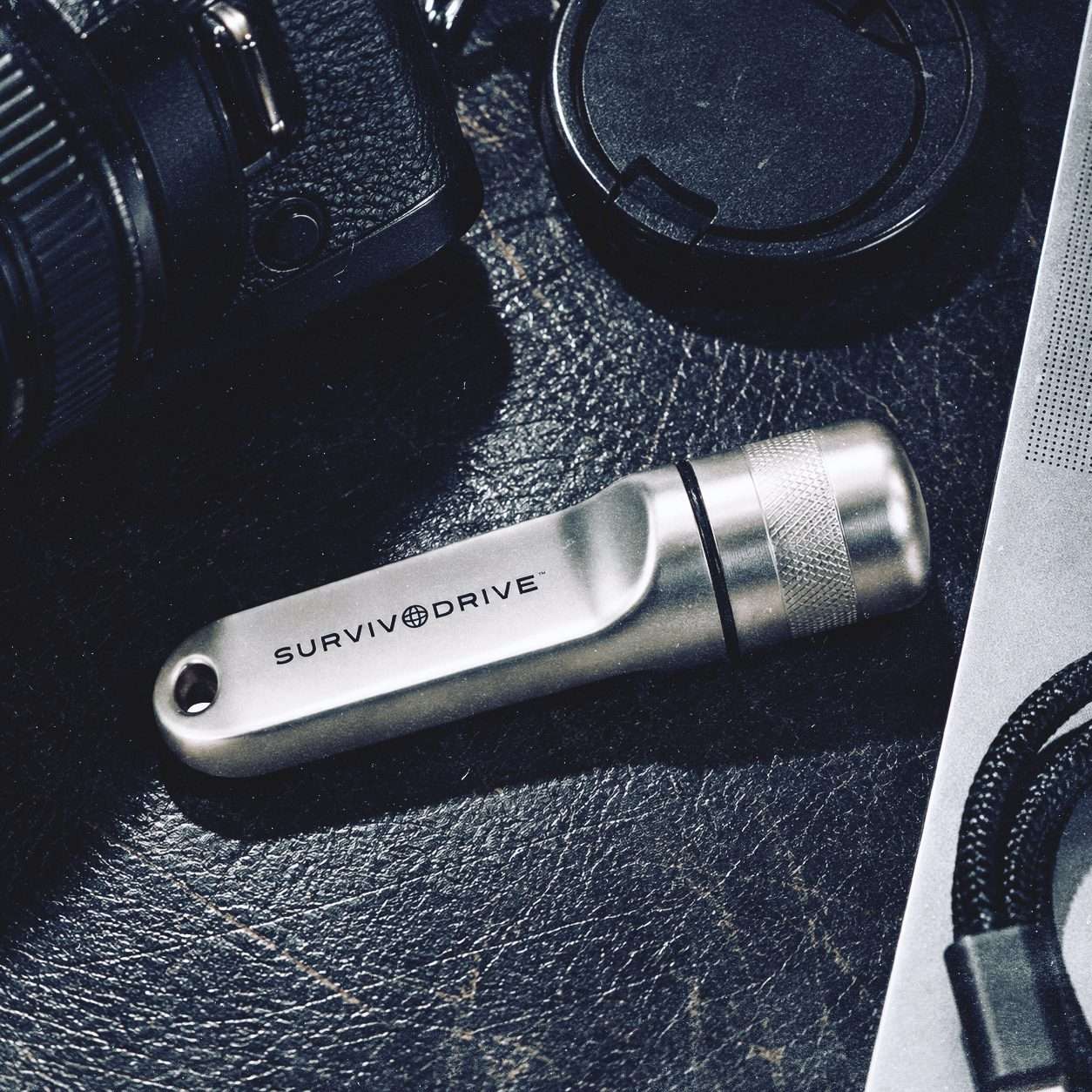
- Copy your data to an external hard drive, USB stick, SD card, or DVD or CD-R discs.
- Unplug the drive whenever you’re not using it. Viruses and ransomware can spread to attached drives.
- Set a calendar reminder to back up at regular intervals, or schedule automatic backups if your software allows it.
- Protect the backup with a password if you’re given the option, in case the drive is lost or stolen.
- Back up your phone or tablet to a computer first, then copy that backup to removable media.
Check your backup works
- Check your backup holds your recent photos and any new files or folders.
- Learn how to restore your data from the backup, and practise it now and then.
- Keep irreplaceable files, like family photos and videos, both in the cloud and on removable media.
- Turn on your recycle bin and file history features. They let you get back a deleted file or an earlier version quickly.
What not to do
- Don’t leave a backup drive plugged in all the time. Malware can move to attached drives and infect your backup.
- Don’t assume a backup worked. Check it contains your important data.
- Don’t protect the account that holds your backups with a weak or reused password.
What to have ready
- External hard drive, USB stick or SD card
- Cloud storage account with 2-step verification turned on
- Calendar reminder to back up regularly
Questions
What is the best way to back up my phone?
You can back up a phone to cloud storage or to a computer. The NCSC says automatic cloud backups mean you’re more likely to have a recent copy and don’t have to remember. If your internet is slow, unreliable or metered, back up the phone to a computer, then copy that backup to removable media.
Should I back up to the cloud or an external hard drive?
Use both for files you can’t replace. Cloud storage can back up automatically but needs a reliable internet connection. An external hard drive can hold large backups, but you need to remember to use it and unplug it. The NCSC suggests keeping irreplaceable photos and videos in the cloud and on removable media.
How often should I back up my data?
Back up regularly so your copy is recent. Most cloud services can back up automatically, daily, weekly or when new files are added to set folders. If you back up to an external drive, the NCSC suggests setting a calendar reminder to do it at regular intervals. Some backup programs can schedule this for you.
Why should I unplug my backup drive?
Unplug your backup drive when you’re not using it, because viruses and ransomware can move to attached drives automatically. If that happens, your backup could be infected too, leaving you with nothing to recover from. The NCSC advises disconnecting removable media, such as external hard drives and USB sticks, whenever it isn’t in use.
Sources
- Backing up your data, NCSC
- Cyber, Prepare (UK Government)
This guide summarises the official advice linked above. It is not medical or legal advice. Follow instructions from the emergency services where you are, and call 999 if anyone is in danger.